React+Flask 이미지 갤러리: (Mac · Docker · Jenkins)
- 이 글은 그대로 따라 해도 로컬 실행부터 Docker Compose, 그리고 Jenkins를 통한 자동 배포까지 완주할 수 있도록 만든 실전형 가이드입니다. 진행 중 만났던 실제 오류들과 해결 방법을 전부 정리했습니다.
최종 목표
- React(프론트) + Flask(백엔드)로 구성된 Unsplash 로 부터 이미지를 가지고 오는 이미지 갤러리 앱을 만든다.
- Unsplash API 키(Secret)를 사용해 키워드로 이미지를 검색한다.
- Docker Compose로 frontend + backend를 함께 띄운다.
- Jenkins 파이프라인으로 main 브랜치 push → 자동 빌드/배포까지 연결한다.
준비물 (Mac 기준)
- Docker Desktop for Mac 설치 (Docker Compose 내장:
docker compose …명령 사용) - Node.js 18+, Python 3.11+
- Jenkins
- Unsplash API Access Key (계정 생성 후 발급)
- GitHub 리포지토리(예:
ImageGallery)
디렉토리 구조
ImageGallery/
├─ backend/
│  ├─ app
│  │   ├─ main.py
│  │   ├─ requirements.txt
│  └─ Dockerfile
├─ frontend/
│  ├─ src
│  │   ├─ App.js
│  │   ├─ Config.js
│  │   ├─ index.js
│  ├─ package.json
│  └─ Dockerfile
├─ docker-compose.yml
└─ Jenkinsfile
1. 백엔드(Flask) — Unsplash 검색 API 프록시
backend/app/main.py
from flask import Flask, request, jsonify
from flask_cors import CORS
import requests
import os
from dotenv import load_dotenv

app = Flask(__name__)
CORS(app)

load_dotenv()  # .env 파일 로드
UNSPLASH_ACCESS_KEY = os.getenv("UNSPLASH_ACCESS_KEY")
port = int(os.getenv("FLASK_PORT", 8000))

@app.route("/images", methods=["POST"])
def get_images():
    data = request.get_json()
    query = data.get("keyword", "").strip()
    if not query:
        return jsonify({"error": "검색어를 입력하세요."}), 400

    url = f"https://api.unsplash.com/search/photos?query={query}&per_page=12&client_id={UNSPLASH_ACCESS_KEY}"
    response = requests.get(url)
    data = response.json()

    if response.status_code != 200:
        return jsonify({"error": data.get("errors", "Unknown error")}), 400

    images = [photo["urls"]["regular"] for photo in data.get("results", [])]
    return jsonify({"images": images[:12]})

if __name__ == "__main__":
    app.run(host="0.0.0.0", port=port, debug=True)
backend/requirements.txt
flask
flask-cors
requests
python-dotenv
backend/Dockerfile
# Python 3.11 사용
FROM python:3.11-slim
WORKDIR /app
ENV FLASK_PORT=8000

# 소스 복사
COPY app/ .
RUN pip install --no-cache-dir -r requirements.txt

# Flask 서버 실행
EXPOSE 8000
CMD ["python", "main.py"]
2. 프런트엔드(React)
frontend/src/App.js
import { useState } from "react";
import { BACKEND_URL } from "./config";

function App() {
  const [keyword, setKeyword] = useState("");
  const [images, setImages] = useState([]);
  const [bgGradient, setBgGradient] = useState(
    "linear-gradient(to right, #fff, #eee)"
  );
  const [tempGradient, setTempGradient] = useState(null);
  const [modalUrl, setModalUrl] = useState(null);
  const [loadedCount, setLoadedCount] = useState(0);

  // 검색어 기반 gradient 생성
  const generateGradient = (keyword) => {
    let hash = 0;
    for (let i = 0; i < keyword.length; i++) {
      hash = keyword.charCodeAt(i) + ((hash << 5) - hash);
    }
    const color1 = `hsl(${hash % 360}, 70%, 80%)`;
    const color2 = `hsl(${(hash + 180) % 360}, 70%, 70%)`;
    return `linear-gradient(to right, ${color1}, ${color2})`;
  };

  console.log("Using BACKEND_URL:", BACKEND_URL);
  const handleSearch = async () => {
    if (!keyword) return;

    // 검색어 기반 임시 gradient 저장 (로딩 완료 후 적용)
    setTempGradient(generateGradient(keyword));

    const res = await fetch(`${BACKEND_URL}/images`, {
      method: "POST",
      headers: { "Content-Type": "application/json" },
      body: JSON.stringify({ keyword }),
    });
    const data = await res.json();
    setImages(data.images || []);
    setLoadedCount(0); // 로딩 카운트 초기화
  };

  const handleImageLoad = () => {
    setLoadedCount((prev) => {
      const next = prev + 1;
      // 모든 이미지가 로드되면 배경 gradient 적용
      if (next === images.length && tempGradient) {
        setBgGradient(tempGradient);
        setTempGradient(null);
      }
      return next;
    });
  };

  const openModal = (url) => setModalUrl(url);
  const closeModal = () => setModalUrl(null);

  return (
    <div
      style={{
        minHeight: "100vh",
        padding: "50px",
        fontFamily: "Arial",
        background: bgGradient,
        transition: "background 0.8s ease",
      }}
    >
      <h1 style={{ textAlign: "center", marginBottom: "30px" }}>
        🖼️ My Gallery
      </h1>
      <div
        style={{
          display: "flex",
          justifyContent: "center",
          marginBottom: "30px",
        }}
      >
        <input
          style={{
            flex: 1,
            padding: "12px",
            fontSize: "16px",
            borderRadius: "8px",
            border: "1px solid #ccc",
          }}
          value={keyword}
          onChange={(e) => setKeyword(e.target.value)}
          placeholder="Put a keyword..."
        />
        <button
          style={{
            padding: "12px 20px",
            marginLeft: "10px",
            borderRadius: "8px",
            border: "none",
            backgroundColor: "#4CAF50",
            color: "#fff",
            fontWeight: "bold",
            cursor: "pointer",
            transition: "background 0.3s",
          }}
          onClick={handleSearch}
          onMouseOver={(e) =>
            (e.currentTarget.style.backgroundColor = "#45a049")
          }
          onMouseOut={(e) =>
            (e.currentTarget.style.backgroundColor = "#4CAF50")
          }
        >
          Search
        </button>
      </div>

      <div
        style={{
          display: "grid",
          gridTemplateColumns: "repeat(auto-fill, minmax(250px, 1fr))",
          gap: "20px",
        }}
      >
        {images.map((url, idx) => (
          <div
            key={idx}
            style={{
              overflow: "hidden",
              borderRadius: "16px",
              cursor: "pointer",
              boxShadow: "0 4px 12px rgba(0,0,0,0.1)",
              transition: "transform 0.4s, box-shadow 0.4s, opacity 0.6s",
              opacity: 0,
              animation: `fadeIn 0.6s forwards ${idx * 0.1}s`,
            }}
          >
            <img
              src={url}
              alt="search result"
              style={{
                width: "100%",
                height: "250px",
                objectFit: "cover",
                display: "block",
                transition: "transform 0.4s",
              }}
              onLoad={handleImageLoad}
              onClick={() => openModal(url)}
              onMouseOver={(e) => {
                e.currentTarget.style.transform = "scale(1.1)";
                e.currentTarget.parentElement.style.boxShadow =
                  "0 8px 20px rgba(0,0,0,0.3)";
              }}
              onMouseOut={(e) => {
                e.currentTarget.style.transform = "scale(1)";
                e.currentTarget.parentElement.style.boxShadow =
                  "0 4px 12px rgba(0,0,0,0.1)";
              }}
            />
          </div>
        ))}
      </div>

      {modalUrl && (
        <div
          onClick={closeModal}
          style={{
            position: "fixed",
            top: 0,
            left: 0,
            width: "100vw",
            height: "100vh",
            backgroundColor: "rgba(0,0,0,0.8)",
            display: "flex",
            justifyContent: "center",
            alignItems: "center",
            zIndex: 9999,
            cursor: "pointer",
          }}
        >
          <img
            src={modalUrl}
            alt="원본 이미지"
            style={{ maxHeight: "90%", maxWidth: "90%", borderRadius: "12px" }}
          />
        </div>
      )}

      <style>{`
        @keyframes fadeIn {
          to { opacity: 1; }
        }
      `}</style>
    </div>
  );
}

export default App;
frontend/src/config.js
export const BACKEND_URL =
  process.env.REACT_APP_BACKEND_URL || "http://localhost:8000";
frontend/src/index.js
import React from "react";
import ReactDOM from "react-dom/client";
import App from "./App";

const root = ReactDOM.createRoot(document.getElementById("root"));
root.render(
  <React.StrictMode>
    <App />
  </React.StrictMode>
);
frontend/Dockerfile
FROM node:20-alpine
WORKDIR /app

COPY package*.json ./
RUN npm install
COPY . .

# docker-compose.yml에서 넘어온 ARG를 ENV로 세팅
ARG REACT_APP_BACKEND_URL
ENV REACT_APP_BACKEND_URL=$REACT_APP_BACKEND_URL

# React 앱 빌드
RUN npm run build
RUN npm install -g serve

EXPOSE 3000
CMD ["serve", "-s", "build", "-l", "3000"]
3. Docker Compose로 로컬 실행
docker-compose.yml
version: "3.8"
services:
  backend:
    build: ./backend
    ports:
      - "8000:8000"
    environment:
      - UNSPLASH_ACCESS_KEY=${UNSPLASH_ACCESS_KEY}
      - FLASK_PORT=8000

  frontend:
    build: ./frontend
    ports:
      - "3000:3000"
    environment:
      - REACT_APP_BACKEND_URL=http://localhost:8000 # 브라우저에서 접근할 백엔드 주서
    depends_on:
      - backend
- ❗ REACT_APP_BACKEND_URL -> 프런트 컨테이너에서 백엔드를
http://backend:10080으로 호출하면 브라우저가 backend라는 컨테이너 DNS를 모릅니다. 반드시 브라우저가 접근 가능한http://localhost:10080을 사용하세요. (docker compose 세팅 시 주의) 얘 때문에 서로 통신이 안되어서 고생했어요 ㅠㅠ
.env 파일 (루트)
UNSPLASH_ACCESS_KEY=여기에_발급_키_입력.env는 절대 커밋하지 마세요. (민감정보)
실행
docker compose build
docker compose up -d
# 확인
open http://localhost:3000
위 파일들을 Github repo 에 추가 합니다. 저는 https://github.com/<GithubID>/ImageGallery.git 에 추가했습니다.
4. Jenkins 파이프라인 설정 (Mac 전용 팁 포함)
4-1. Jenkins 설치/실행 (요약)
jenkins 설치에 대한 자세한 정보는 공식 홈페이지를 참조했습니다. (https://www.jenkins.io/download/lts/macos/)
- Homebrew로 설치했다면:
brew services start jenkins-lts - 웹 접속:
http://localhost:8080(포트 번호는 바꿀 수 있습니다.) - 초기 비번:
/Users/<계정>/.jenkins/secrets/initialAdminPassword
4-2. Credentials 등록
- UNSPLASH_KEY: Kind = Secret text, ID =
UNSPLASH_KEY, Secret = 발급 키 - GITHUB_CREDENTIAL: GitHub Personal Access Token (private repo면 필수)
4-3. Jenkinsfile
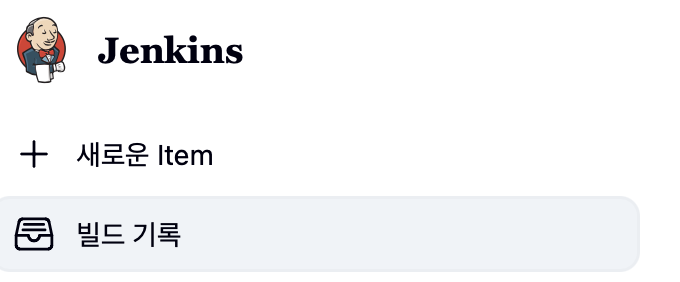
이제 Jenkins에 접속하여 ( http://localhost:8080 ) 새로운 item 을 등록합니다.
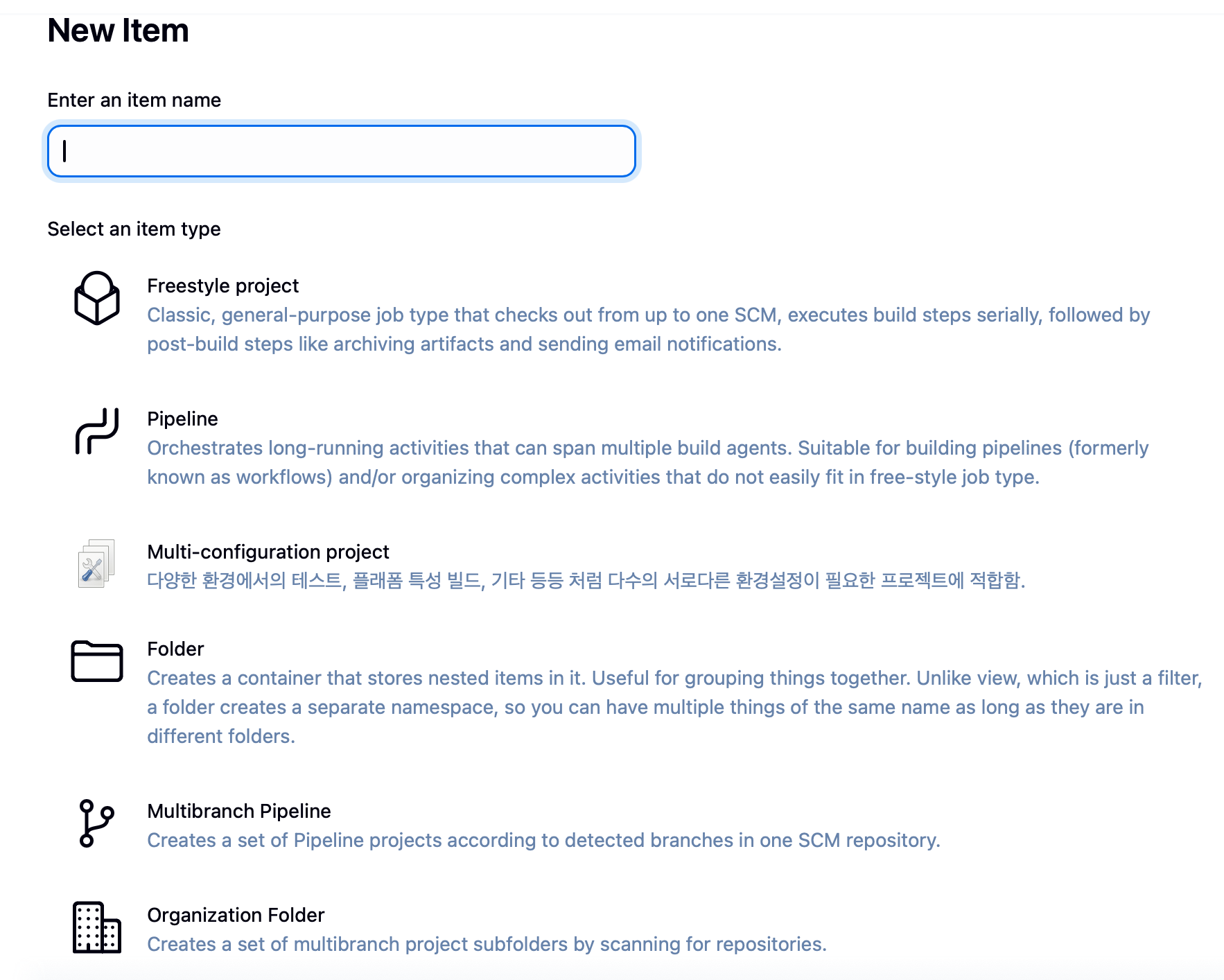
그러면 아래와 같은 화면이 나오는데, item name 은 원하는 문자열을 넣고, 저희는 Pipeline을 선택합니다.
그리고 아래로 쭉 내려와 Script에 아래 Jenkinsfile을 작성 후, 빌드를 트리거 하면 됩니다.
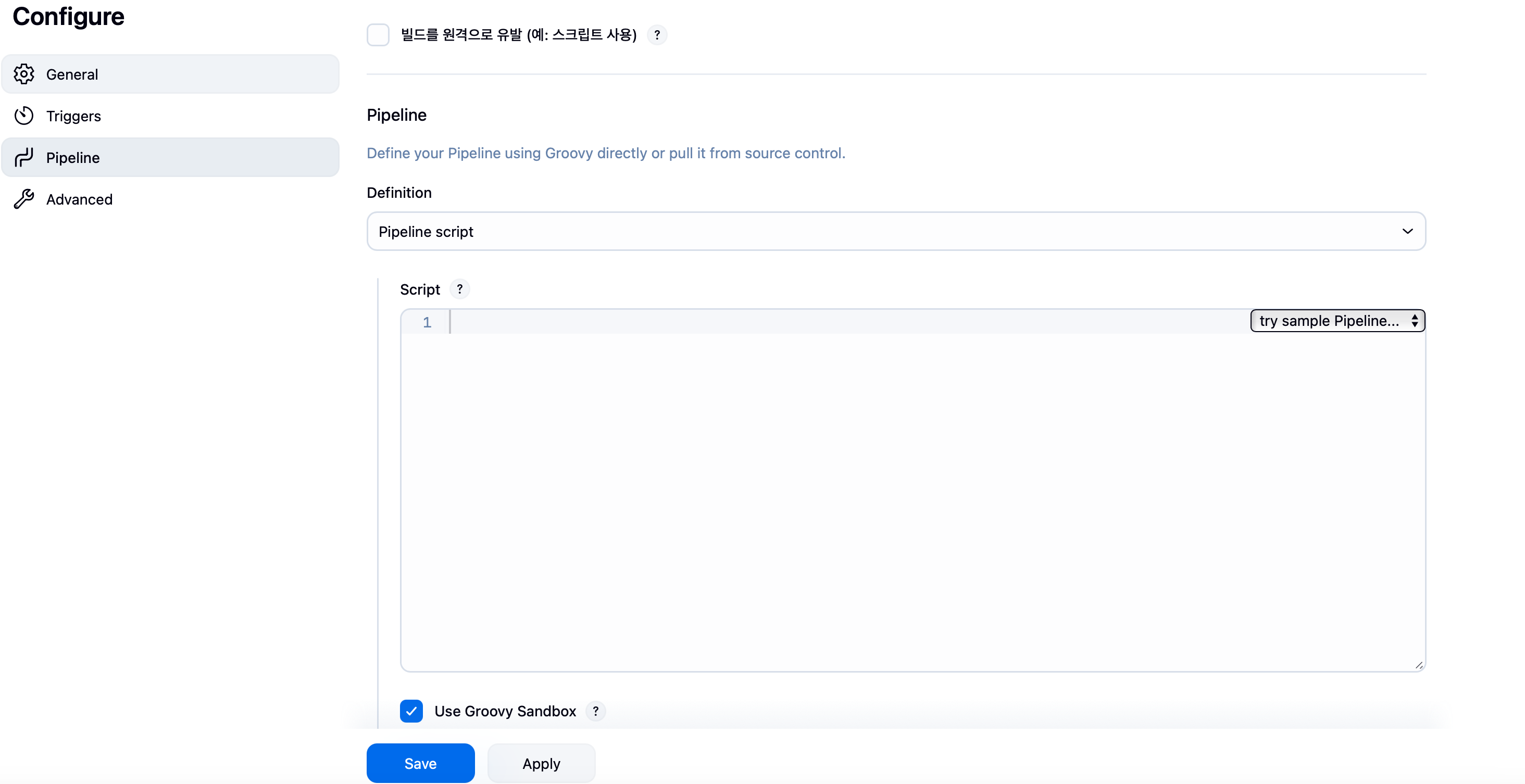
Jenkinsfile
pipeline {
    agent any
    environment {
        // Mac 에서 docker 명령어를 찾지 못해서 해당 문제를 대응하기 위한 PATH 추가
        PATH = "/usr/local/bin:/opt/homebrew/bin:$PATH"
        // Secret Text → 환경변수로 주입
        UNSPLASH_ACCESS_KEY = credentials('UNSPLASH_KEY')
    }

    stages {
       stage('Checkout') {
            steps {
               // 해당 repo 로부터 코드 fetch 후 빌드할 예정
                git branch: 'main', url: 'https://github.com/<GithubID>/ImageGallery.git'
            }
        }
        stage('Build & Deploy') {
            steps {
                sh '''
                docker compose build --no-cache
                docker compose up -d
                '''
            }
        }
    }
    post {
        success {
            echo "✅ Deployment Success!"
        }
        failure {
            echo "❌ Deployment Failed!"
        }
    }
}
- ✅ Declarative Pipeline에서 모든
stage는 반드시stages {}안에 있어야 합니다.Undefined section "stage"오류가 났었는데 그게 원인이었습니다.
4-4. 빌드 트리거
- 생성된 pipeline에 들어가서 수동으로 Jenkins를 빌드합니다. (지금 빌드 button)
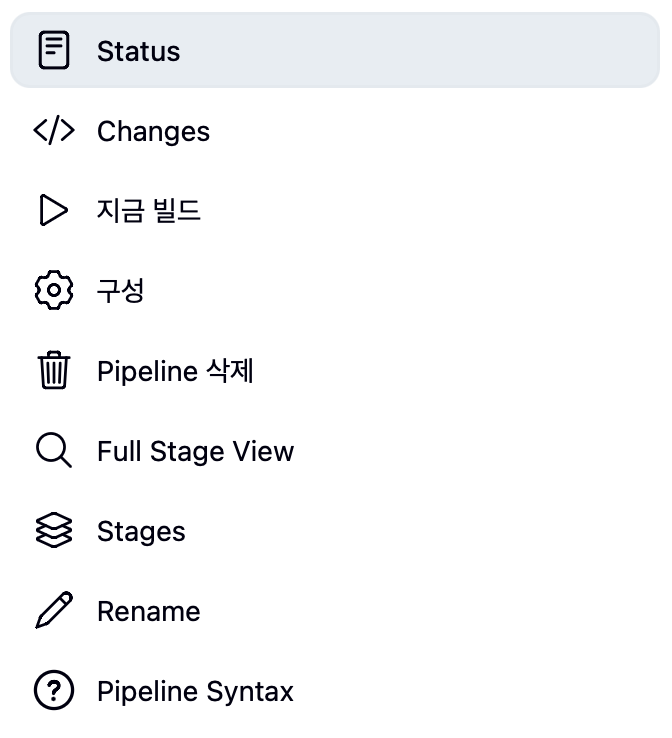
- 추후에 자동으로 CD 가 가능한 Jenkins Job을 설정할 예정입니다. 방법은 크게 아래처럼 2가지 인데 저는 Github Webhook 연결을 하여 자동화할 예정입니다. ( 이 부분은 따로 blog posting 할 예정입니다.)
- 간단: Poll SCM →
H/1 * * * *(1분마다) - 권장: GitHub Webhook 연결 (push 시 즉시 빌드)
- 간단: Poll SCM →
5. 실제로 겪었던 오류들 & 해결법 총정리
아래는 제가 CI/CD 를 구축하면서 마주하였던 에러들을 정리한 것입니다. 자세한 내용은 https://silver-programmer.tistory.com/entry/Jenkins-배포-중-마주한-에러들과-해결방법 에 정리되어 있습니다! 혹시나 도움이 될까...ㅎㅎ
| 증상/로그 | 원인 | 해결 |
|---|---|---|
WorkflowScript: Undefined section "stage" |
stage{}가 stages{} 밖에 있음 |
모든 stage를 stages{} 내부로 이동 |
ERROR: UNSPLASH_KEY |
Jenkins Credential 미등록 또는 타입 오류 | Kind=Secret text, ID=UNSPLASH_KEY로 등록 후 credentials('UNSPLASH_KEY') 사용 |
docker-compose: command not found |
(구버전 명령) 미설치 또는 PATH 문제 | Mac은 docker compose 사용. PATH에 /usr/local/bin:/opt/homebrew/bin 추가 |
docker: command not found |
Jenkins 환경 PATH에 docker 없음 | Jenkinsfile environment { PATH=… } 추가 또는 Jenkins 실행 환경 PATH 설정 |
| main으로 push했는데 반영 안 됨 | workspace 캐시, 인증 문제 | docker compose build --no-cache 사용 |
프런트에서 http://backend:10080 호출 실패 |
브라우저는 컨테이너 DNS 미인지 | 프런트 env를 http://localhost:10080로 설정 |
7. 체크리스트
Unsplash 키 발급 완료, .env에 UNSPLASH_ACCESS_KEY 설정
backend/requirements.txt가 backend/Dockerfile과 같은 폴더
docker compose up -d 후 http://localhost:3000 접속 가능
브라우저 Network에서 /images 200 응답 확인
Jenkins Credentials: UNSPLASH_KEY(Secret text), GITHUB_CREDENTIAL
Jenkinsfile의 PATH에 /usr/local/bin:/opt/homebrew/bin 포함
8. 마무리
이 글의 목표는 **“복붙만 해도 끝까지 간다”**였습니다. ㅎㅎ 실제로 겪었던 문제(Declarative 문법, Credential, Docker/Docker Compose 차이, PATH, COPY 경로, 브라우저-컨테이너 네트워킹 차이)를 모두 체크리스트화 했습니다. 실습이 막히면 6장 오류표를 먼저 확인해 보세요.
필요하시면 이 프로젝트를 Helm 배포나 클라우드(EC2, Lightsail, GCP, Render 등)로 확장하는 글도 이어서 준비하겠습니다. 즐거운 배포 되세요! 🚀
'Side Project' 카테고리의 다른 글
| React+Flask 어플리케이션: 코드부터 Jenkins 배포까지 (CI/CD) - 3 (Ingress 활용하기) (0) | 2025.09.07 |
|---|---|
| React+Flask 어플리케이션: 코드부터 Jenkins 배포까지 (CI/CD) - 2 (2) | 2025.09.04 |
| Jenkins 배포 중 마주한 에러들과 해결방법 (0) | 2025.09.04 |
| Docker compose로 MongoDB 사용하기 (Mac) (2) | 2024.11.19 |
| 기본 HTML 문법 - 1 (p, span, a, li, img, 시맨틱 태그) (3) | 2024.10.31 |
